
How to listen to a guided meditation without background music
If you prefer spoken guidance on its own, use the Music volume slider in Mellow Vale. Leave Overall volume at a comfortable level so you can hear the voice.
Turn off the music in the meditation player
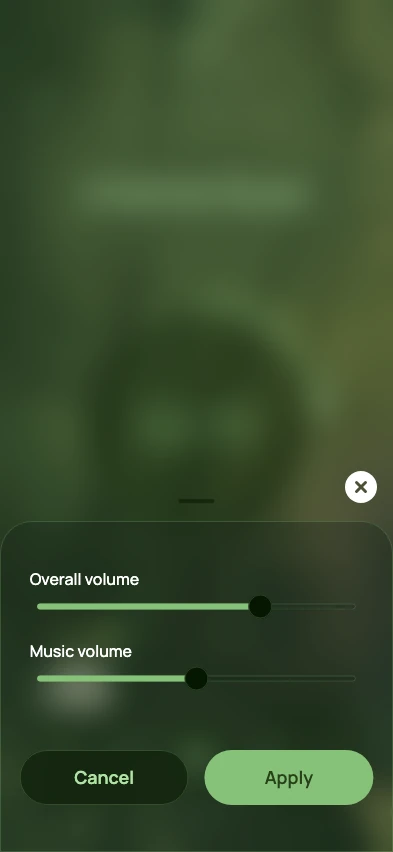
Open a session and tap Volume settings
Open a guided meditation from your chat. Tap the volume button in the top-right corner of the player.
Move Music volume all the way left
Slide Music volume to its lowest setting to mute the background track. Keep Overall volume high enough to hear the spoken guidance. Overall volume controls the device’s playback volume.
Tap Apply
Tap Apply to keep the change and return to the player. The music level is saved for later sessions on this device. You can turn it back up in the same panel anytime.
If you still hear music or the voice is too quiet
Check that you tapped Apply. Cancel or closing the panel without applying restores the previous volumes. Reopen Volume settings to confirm Music volume is all the way down.
If the music is gone and the voice is too quiet, raise Overall volume or use the device’s volume buttons. Leave Music volume at the lowest setting to keep the background track muted.
Make the spoken guidance suit the moment
In Settings, preview another meditation voice if you prefer a different sound. In the player, use the playback speed control to give yourself more time between spoken instructions.
For your next check-in, try “Guide me through a few minutes with simple instructions and a little time to notice the sounds in the room.” Then keep Music volume at the lowest setting while you listen.